
Plans & Subscriptions
Your plan sets your monthly credit allowance, seat count, and daily limits on AI features. Workspace plans bill the organization; personal plans bill an individual. Compare tiers, upgrade, downgrade, or cancel from Workspace billing or Personal billing — live pricing always shown there.
A subscription is what grants your monthly credits and unlocks features. Workspace plans cover an organization and its members; personal plans cover a single user. Manage your workspace plan from Workspace billing and your personal plan from Personal billing, where current pricing is always shown.
What a plan includes
Every plan bundles a few things:
- Included credits — a credit grant that lands in your cycle bucket at the start of each billing period. Higher tiers include more. These reset each cycle — they don't roll over.
- Seats — how many members the workspace can have (workspace plans only).
- Daily AI limits — per-day caps on the in-app
ai_chatandai_agentfeatures. Higher tiers raise or remove them. (These limits don't affect direct API or enrichment usage, which is governed by your credit balance.) - Features — access to specific reports, exports, developer/API keys, and enterprise capabilities scales with tier.
Need more credits than your plan includes? You don't have to upgrade — just buy credits. Purchased credits roll over, so topping up is often the better move for occasional spikes. Upgrade when you want a higher recurring allowance, more seats, or a gated feature.
Workspace plans
Workspace plans bill the organization. The org owns the subscription and payment method; the included credits are allocated across members per seat. Owners and admins manage the plan and can set per-member allocations and limits.
Tiers scale from a small starter workspace up through enterprise, increasing seats, included credits, and daily AI limits at each step. Enterprise plans add custom allowances, credit transfers, per-member contract allocations, and other negotiated terms.
Personal plans
A personal plan bills an individual rather than an organization. It grants its own monthly credits into your personal cycle bucket and is independent of any workspace you belong to — useful if you want your own allowance separate from the org, or if you aren't part of a workspace at all.
Personal credits (whether from a personal plan or bought directly) only get drawn down once Spending beyond cycle is on for your personal pool, and they sit at the end of the draw order after your organization's buckets.
Managing your subscription
Manage your plan from Workspace billing (or Personal billing for a personal plan). The page shows your current plan and status, the next tier up, your payment method, and a Danger Zone to cancel.
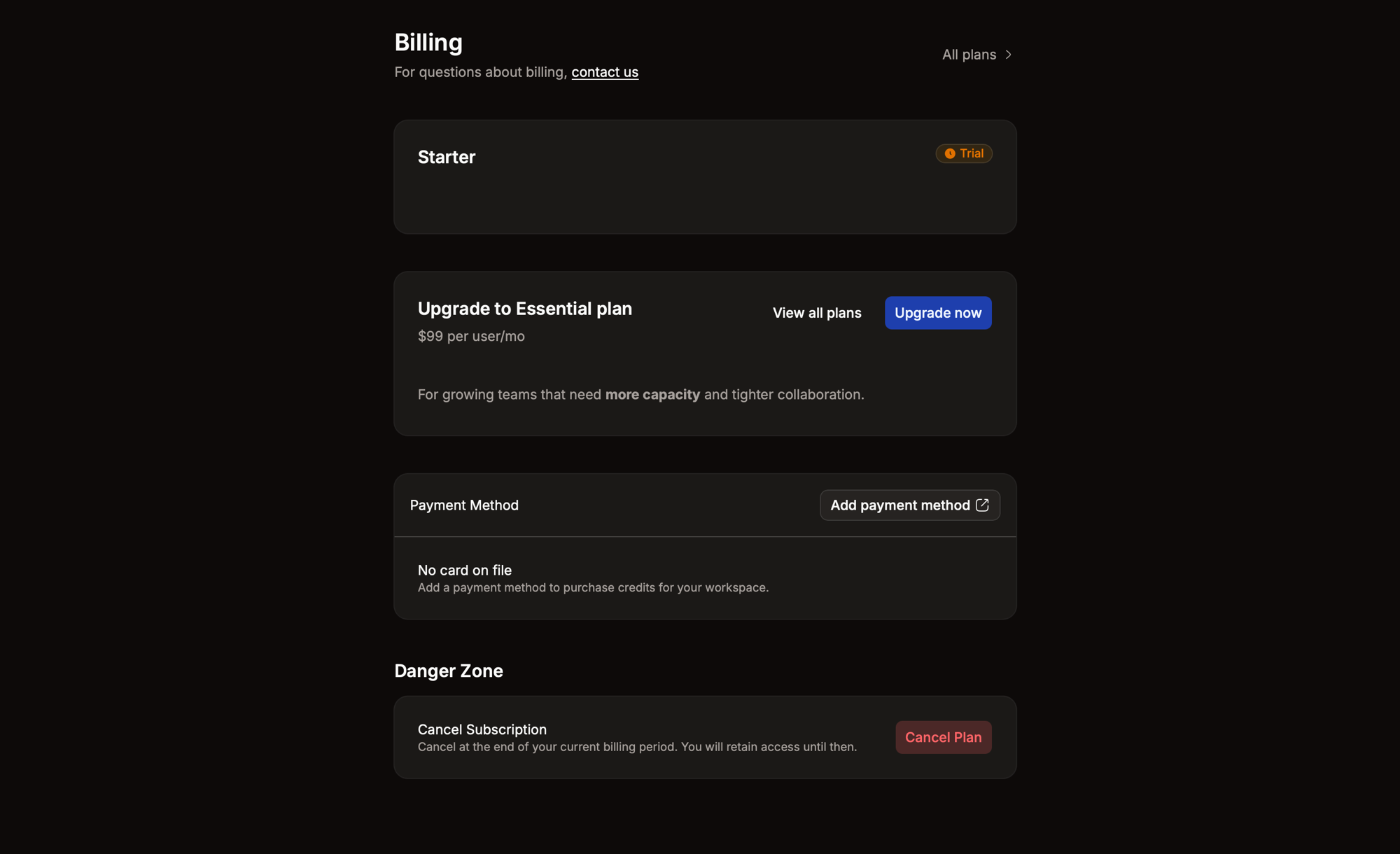
- Current plan — your active tier and its status badge (e.g. Trial). Workspace plans are priced per user / month.
- Upgrade — the page surfaces the next tier with Upgrade now; All plans (or View all plans) opens the full comparison. Upgrades take effect immediately, and the new credit allowance applies from the next cycle.
- Payment Method — Add payment method to put a card on file. You need one to purchase credits for your workspace and to enable auto top-ups.
- Cancel — under Danger Zone, Cancel Plan ends the subscription at the close of the current billing period; you keep access until then.
Your subscription status reads as active, trialing (during a free trial), canceled (ending at period close), or expired. Downgrades and re-subscribing are handled from the same page.
Related
Buying Credits
Top up your balance from My credit usage. Buy credits on demand — larger purchases come at a better per-credit rate. Turn on Spending beyond cycle to keep working past your included credits, capped per billing period by your cycle cap, drawing from your workspace or personal pool.
Tracking Usage
See your balance, what you've spent, and where it went. My credit usage shows your included-credit consumption, your on-demand balance, and on-demand spend against your cycle cap — split across workspace and personal pools. View ledger opens the full transaction history.